Add your photos
Choose PNG, JPG or HEIC images from your device.
 PNG to PDF
PNG · JPG · HEIC → PDF
Add PNG, JPG or HEIC photos, combine them into one PDF and download the result from your Chrome side panel. A free extension for Google Chrome.
Made for Google Chrome
PNG to PDF
Convert photos to PDF files
01 / How it works
A clear three-step flow, directly inside Chrome.
Choose PNG, JPG or HEIC images from your device.
Arrange your images and start the conversion.
Save the finished PDF directly from the extension.
02 / Features
Bring several photos together in one PDF file.
Add PNG, JPG and HEIC images to your document.
Keep the converter open beside the page you're viewing.
03 / After you install
04 / Good to know
Save everything as one combined PDF, or download a ZIP archive with a separate file for each image.
Files are processed in the extension itself, on your computer. The converter stays open in the side panel beside your page.
Page size, margins, compression and PNG transparency are not published in detail. Open the finished PDF at 100% zoom to check that it looks the way you need.
No text recognition (OCR), no PDF editing, no compression to a target size and no password protection. For those jobs, use a full PDF editor.
05 / Guides
How each format behaves inside a PDF, how to keep page order, and how to convert with the tools already on your device.
06 / FAQ
You can add PNG, JPG and HEIC images, including photos taken on an iPhone.
Yes. Add multiple images, arrange them in the order you want and convert them into one PDF document.
Yes. Before you save, choose between one combined PDF and a ZIP archive with separate files.
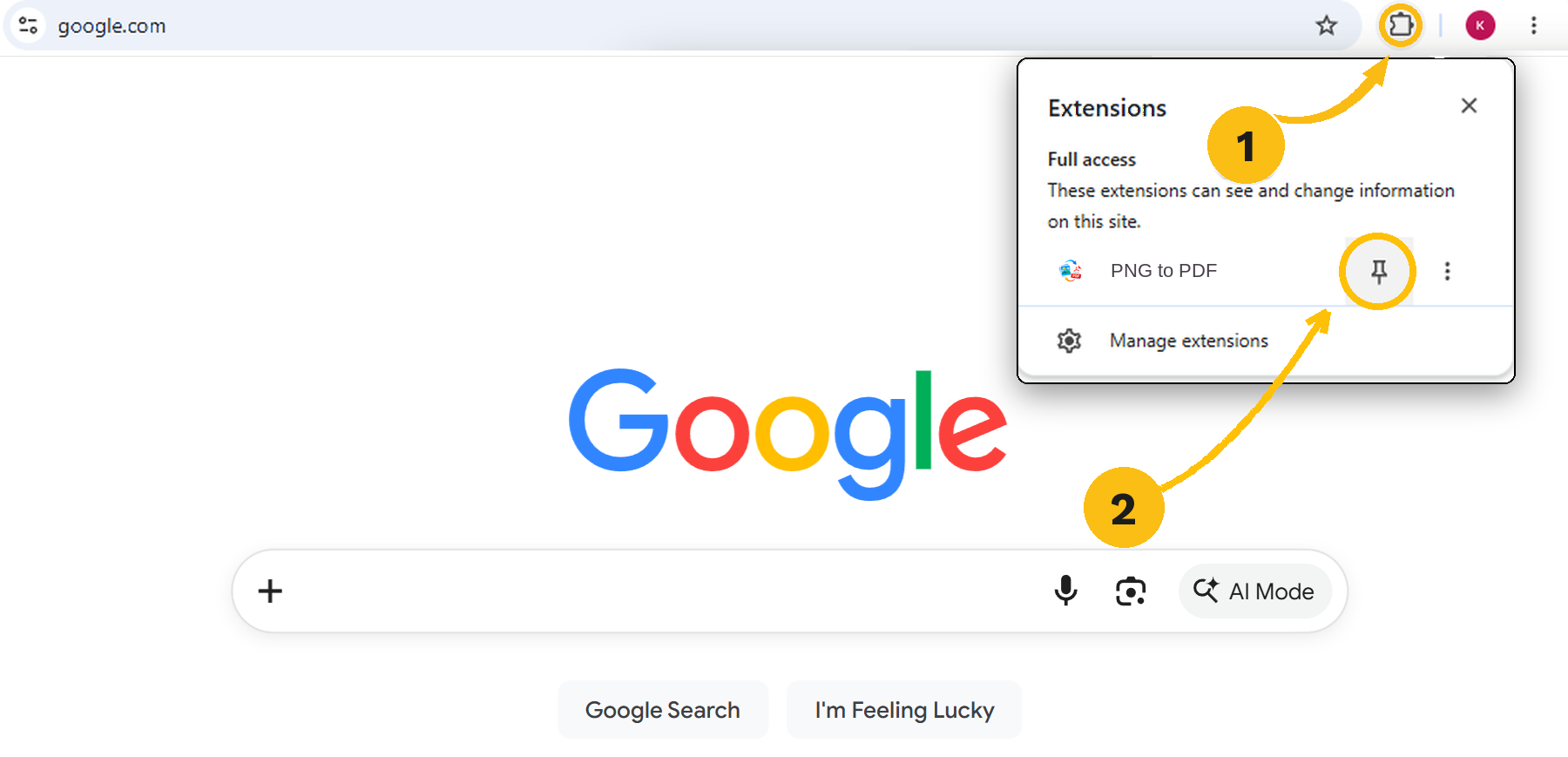
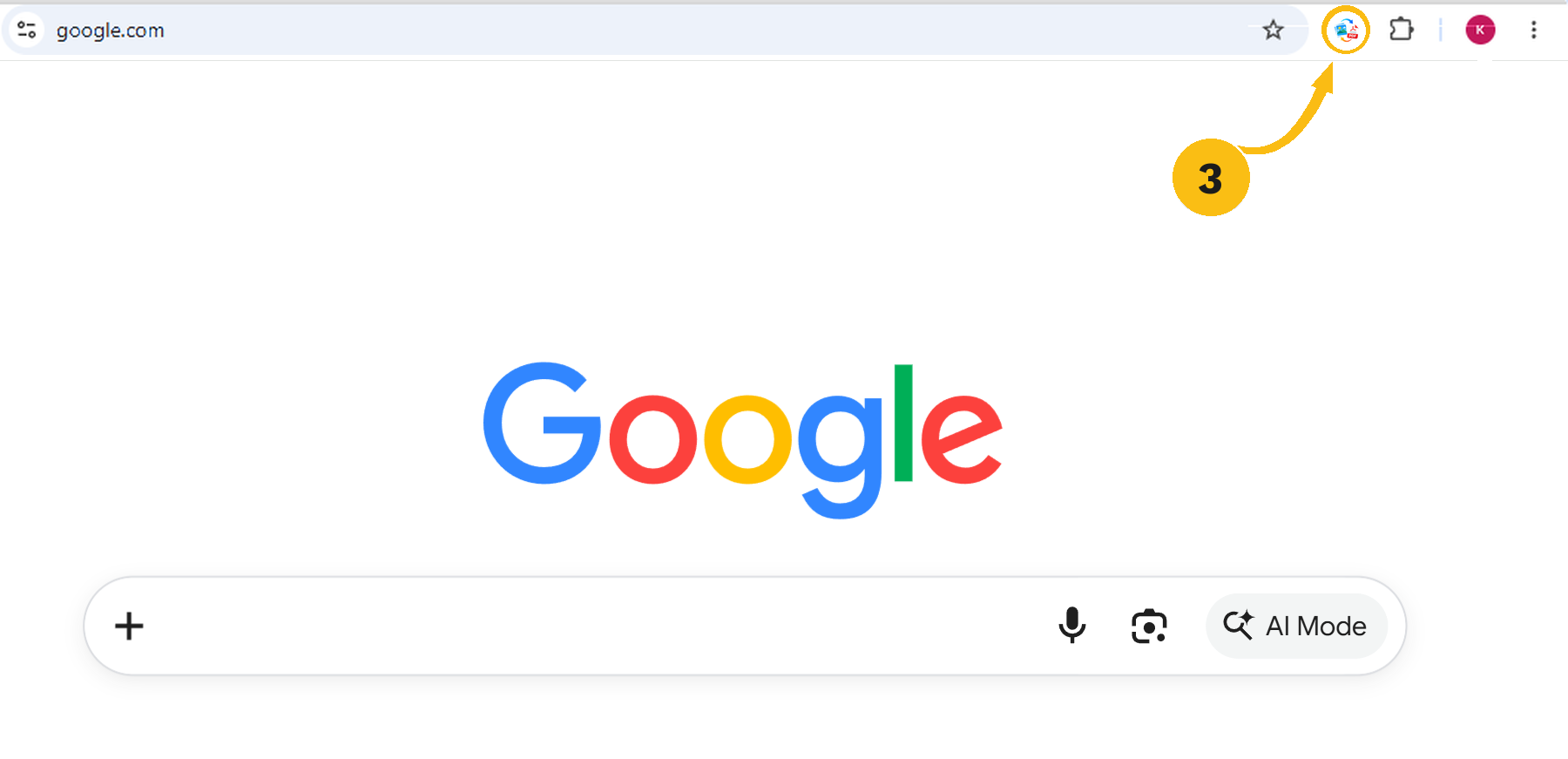
PNG to PDF opens in the Chrome side panel, beside your current page. Pin the extension to the toolbar and click its icon on any page to open it.
The files are processed in the extension itself, on your computer.
Yes. The extension is free to install from the Chrome Web Store.
No. PNG to PDF turns images into a PDF. Text recognition (OCR), PDF editing, compression to a target size and password protection are not part of it.
PNG to PDF is made for Google Chrome on a computer. Versions for other browsers or for phones are not listed.
Open PNG to PDF in Chrome and create your document in a few simple steps.